Machine-readable: manifest · index · English Markdown
Manage maps
Spatial Maps is the control center for creating maps, uploading scan data, monitoring builds, and opening, moving, or transferring completed maps.
Create a map
- Open Spatial Maps in Portal.
- Select the destination Project, or create one first.
- Select + New Map. A card named New Map is created in that Project and opens in rename mode.
- Use a durable name such as
HQ · Level 2 · Gallery. - Select the input type that matches the source data and follow its scanning guide.
If the Project already contains an unsubmitted map, + New Map is temporarily disabled. Submit or remove that unfinished map first.
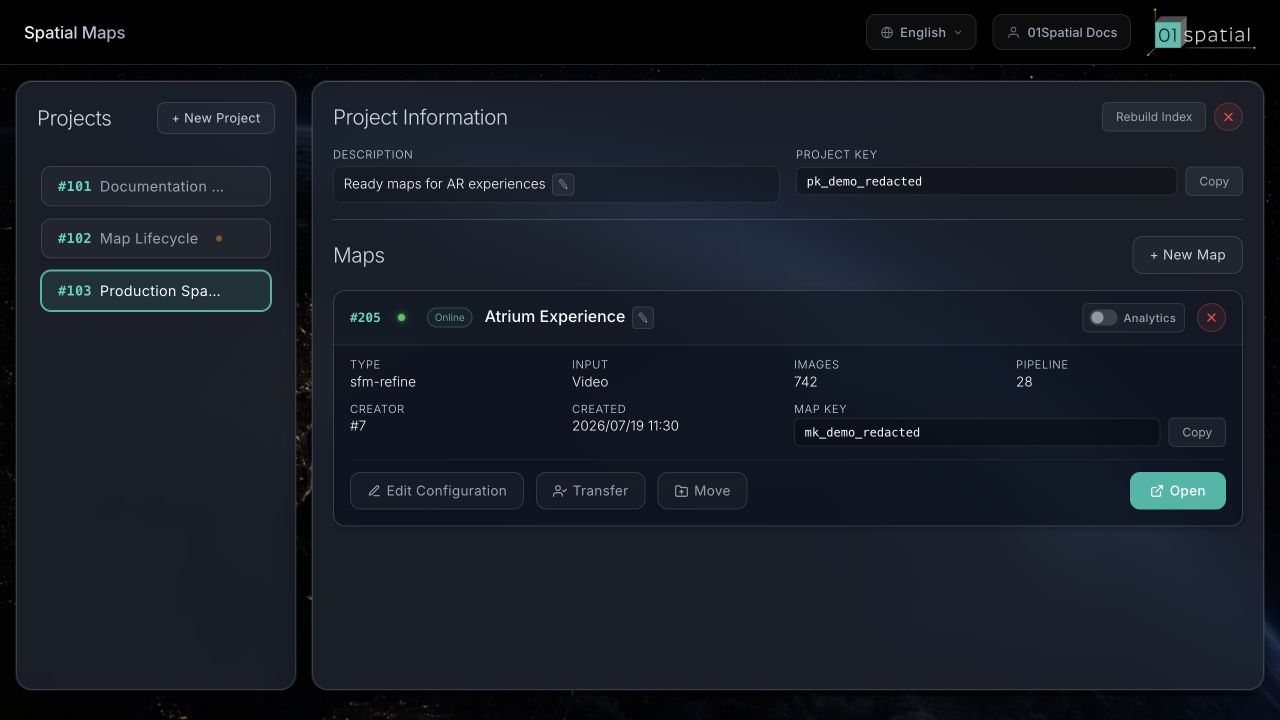
Understand a map card
The header always contains the stable map ID, editable name, and current status.
Created
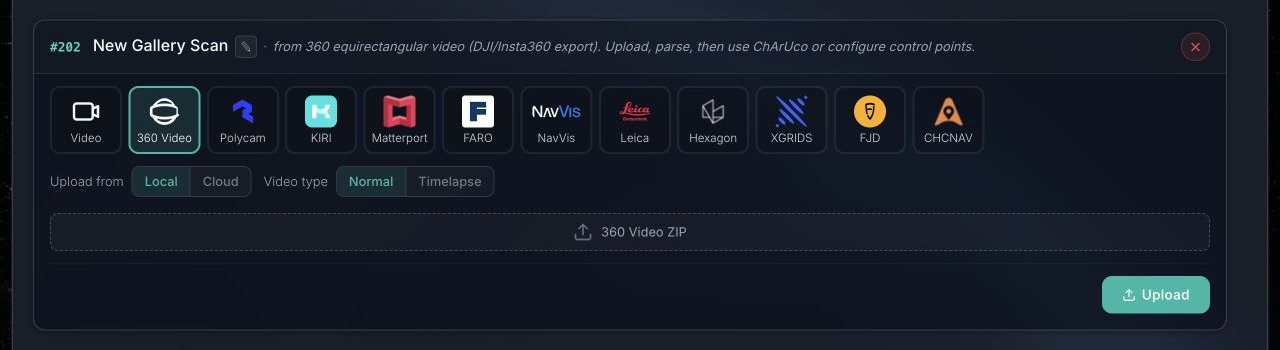
In Created, select an input type and transfer method:
- The input type tells Portal how to validate and parse the data.
- Local uploads from this computer and requires the page to remain open.
- Cloud, recommended for large files, lets the server download a file from a supported drive.
- The primary action changes between Upload, Download from Cloud, and Build according to the input.
- The close button deletes the unsubmitted map and its staged data.
Parsing and configuration
Video enters Parsing while Portal extracts useful frames and checks reference boards. In Parsed, the card reports extracted frames and the board check. Configure opens Map Configurator for GCPs (Ground Control Points), Tie Points, and Scale Bars. A qualified board result also enables building directly from the board constraints.
Queue and build
- Pending means the job is queued and shows how many jobs are ahead.
- Building shows reported progress. Canceling discards this build's progress and returns the map to an editable state.
- Failed means no usable result was produced. Re-parse or rebuild as prompted; retain the map ID and failure time when contacting support.

Ready
Ready means the map and localization assets are available.
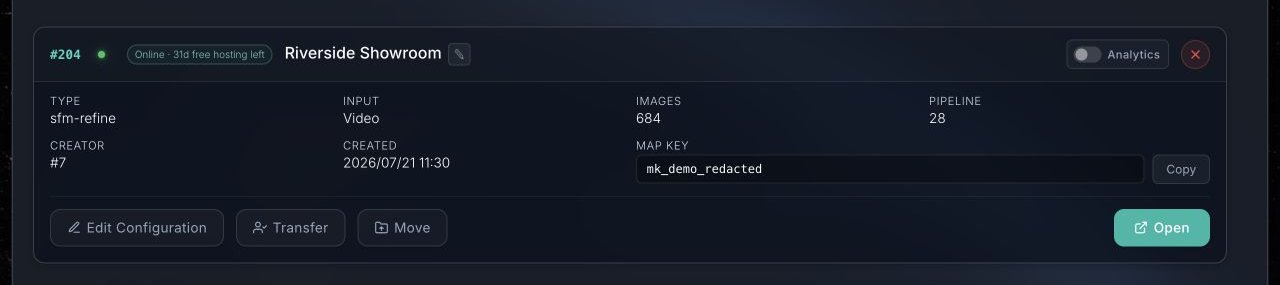
| Field | Meaning |
|---|---|
| Type | Mapping method used for this build. |
| Input | Original source-data type. |
| Images | Images that entered the map, not the total video frames or raw scanner photos. |
| Pipeline | Software pipeline version used by this build. |
| Creator | Original creator's user ID; a transfer does not rewrite this history. |
| Created | Time the map was first created. |
| Map Key | Map credential used by localization clients. Use Copy rather than transcribing it. |
Online / Offline reports current service availability and may show remaining free-hosting days. Analytics records and replays localization sessions; when enabled, its retention period and storage usage are also available.
Ready-card actions:
- Open opens Space Studio in a new tab.
- Configure revisits supported scan constraints; follow Portal instructions if a rebuild is required.
- Move changes the Project within this account.
- Transfer invites another 01Spatial user to accept ownership and future hosting responsibility.
- Delete permanently removes the map, source data, and Content.
Some actions are locked while indexing or geometry processing is active.
A map built from standard-camera or 360° video also carries a Mesh section on this card until its mesh is built. See Build the mesh.
Move within your account
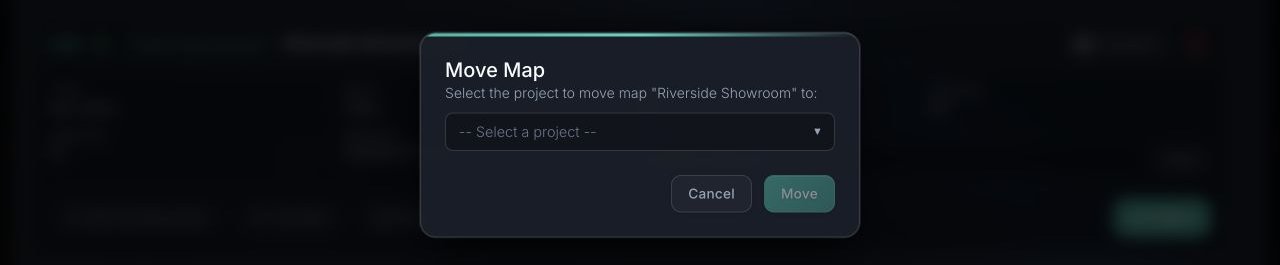
Move changes only the Project. It preserves the map ID, owner, Map Key, Content, and billing assignment.
Choose Move, select another Project owned by the same account, and confirm. For a Ready map, Project-level localization indexes are refreshed in the background. Moving the last accepted map out of Received Maps automatically removes that empty group.
Transfer ownership
Transfer is a two-party ownership handoff, not an immediate move or a read-only share.
Sender
Choose Transfer, enter the recipient's User ID, and create the offer. It remains valid for 72 hours. Until acceptance, the sender retains the map, ownership, service state, and all charges. A new offer for the same map cancels the previous open offer. Active builds, deletion, archive work, or unsettled build charges prevent a transfer.

Recipient
The recipient reviews the offer under Incoming map offers on the Billing page. It includes the sender, expiry, and estimated hot/archive hosting cost. Reject changes nothing. Accept atomically changes the owner, future billing assignment, and Project; the map appears in Received Maps and can then be moved into another owned Project.
Costs incurred before acceptance remain with the sender; future hosting is assigned to the recipient. An inactive billing account or a Free account already at its map limit cannot accept.
Next
- Maps built from standard-camera or 360° video need their mesh built separately — continue to Build the mesh.
- Continue to Explore a map for points, meshes, and mapping cameras.
- Continue to Add content to author objects in map coordinates.